

Adding An App
Adding an App
Retired deco.cx guide. Fresh and the former deco.cx admin are retired. Use released Blocks 7.x for the website runtime and Studio Site Editor for current content work. This page preserves the original Fresh / Deno and admin workflow. Use the Studio Site Editor guides for current editing, and the migration overview to distinguish editor migration from framework migration. Screenshots, old offers, and admin controls below are historical.
In this documentation, we will guide you through adding an App to your site.
An App allows you to easily integrate new functionalities, sections, and
features into your site.
1. Access the Apps Page
To add an app to your site, click on the Apps tab. You will see a list of all available apps. In this case, we will add the Weather App.
2. Install the App
Click on the switch button to install the app on your site.
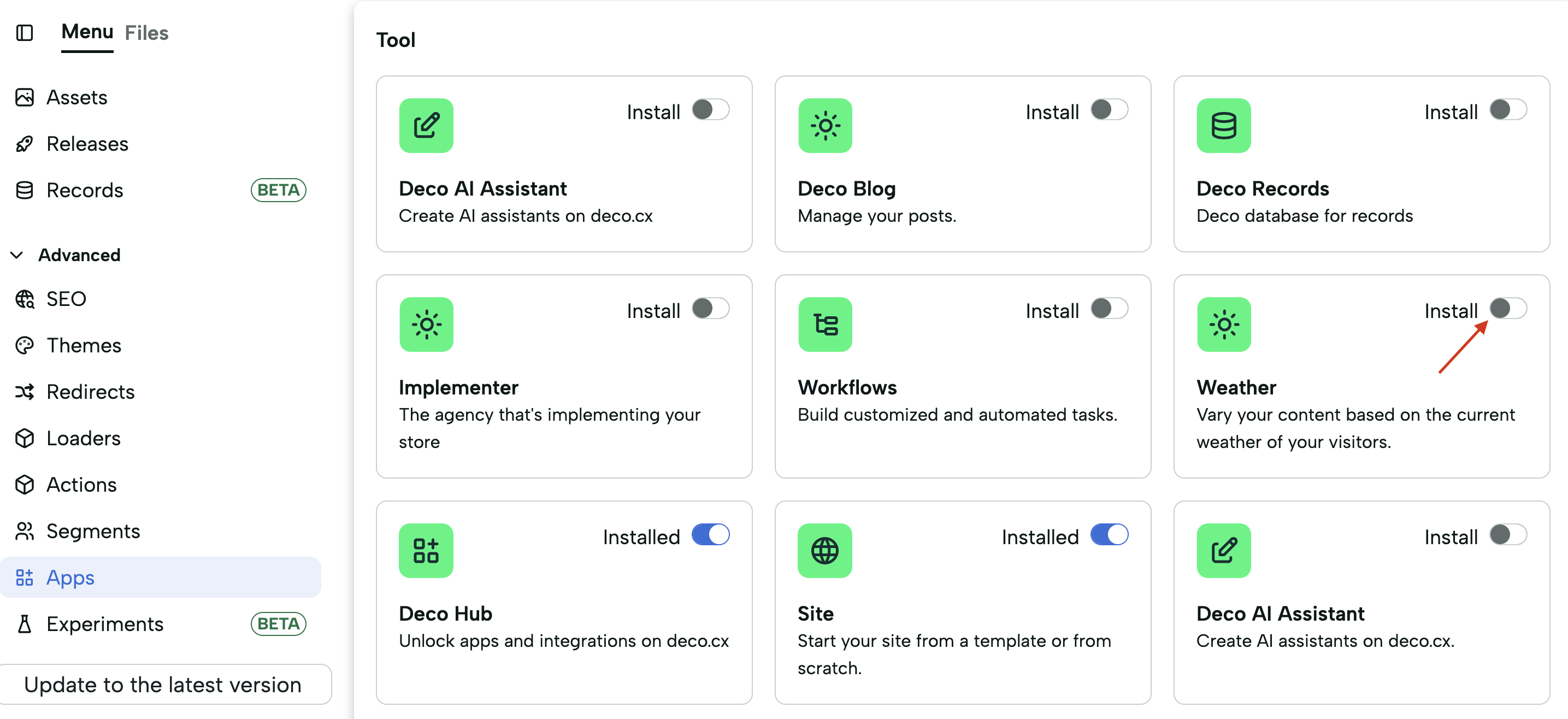
The Weather App provides a section that displays a message with the current temperature. Besides the section, this app also includes a loader, a TypeScript function that returns data typically needed in a Section. This specific loader retrieves the temperature of a given location (or the current location if no location is specified). Let's use both and see how they can be integrated.
3. Use the App's Functionalities
3.1 Go to the WhatsTheTemperature Section
Navigate to the Sections Page and click on the WhatsTheTemperature Section. You can filter the list by the app.
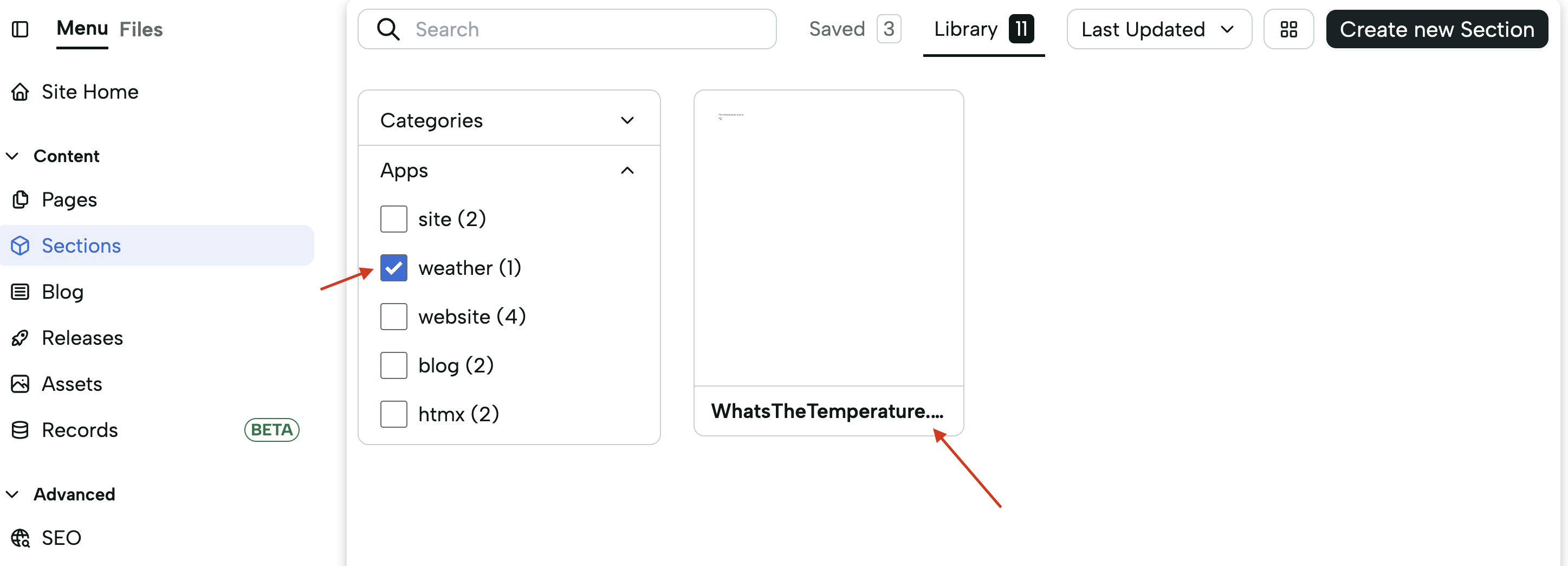
Open the section properties. The only property this section has is a temperature, which is a number representing the temperature in Celsius.
3.2 Configure the Section to Use the App's Loader
Click on the Temperature field to choose how you will provide the temperature information.
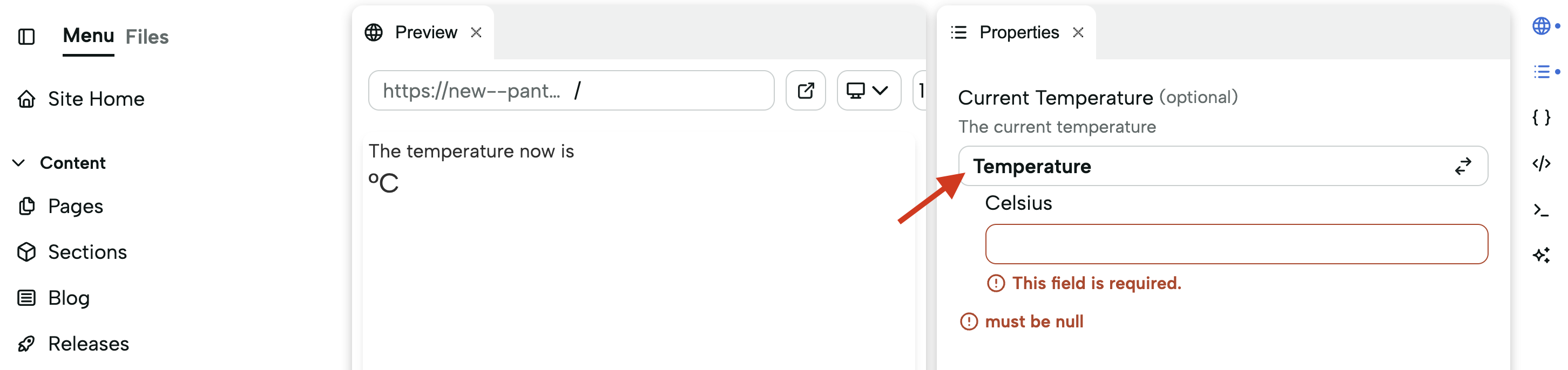
You have three options:
-
Manual Entry: Provide an arbitrary number for the temperature.
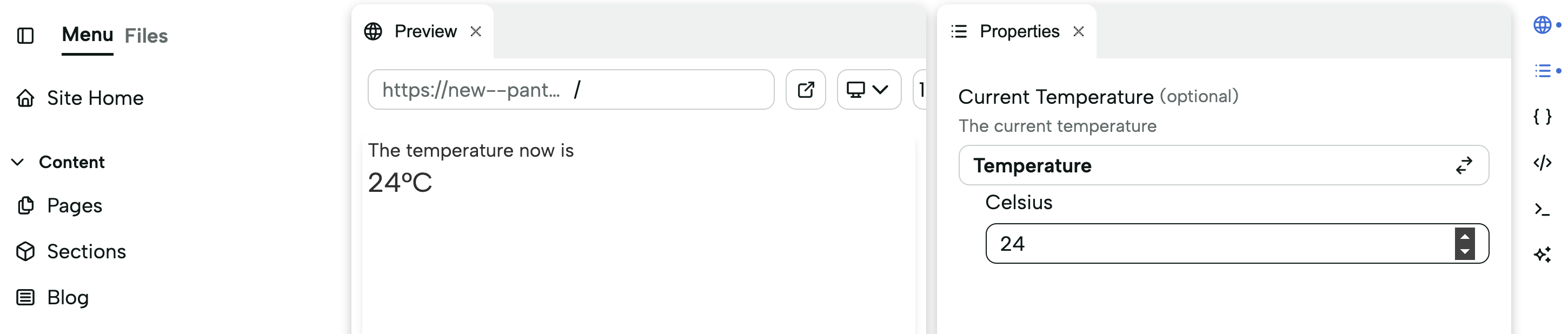
-
Default Value: Leave the temperature field blank. The section accepts a null value, and a default fixed temperature will be displayed.
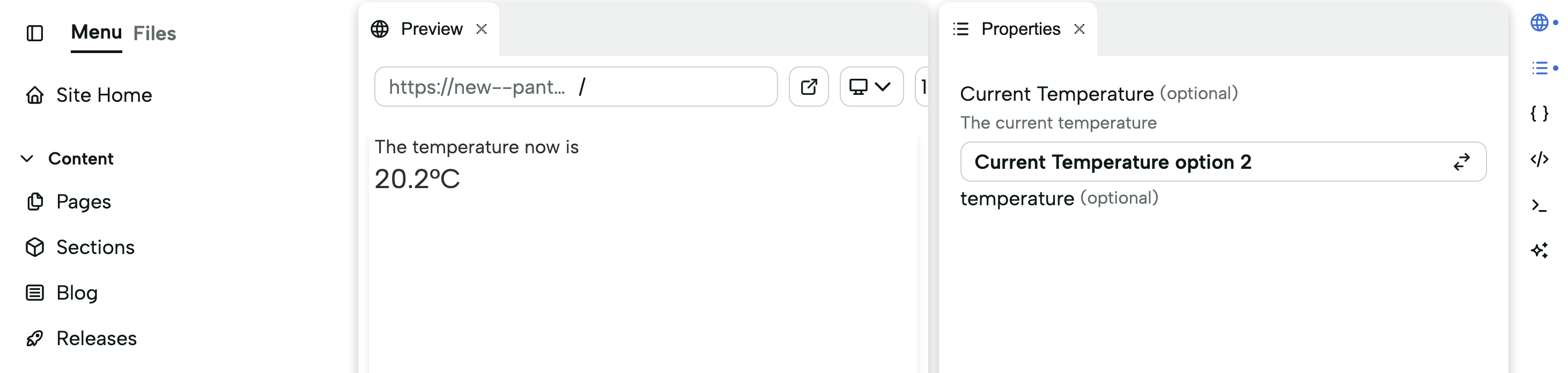
-
Use the Loader: Utilize the loader made available by the Weather App.
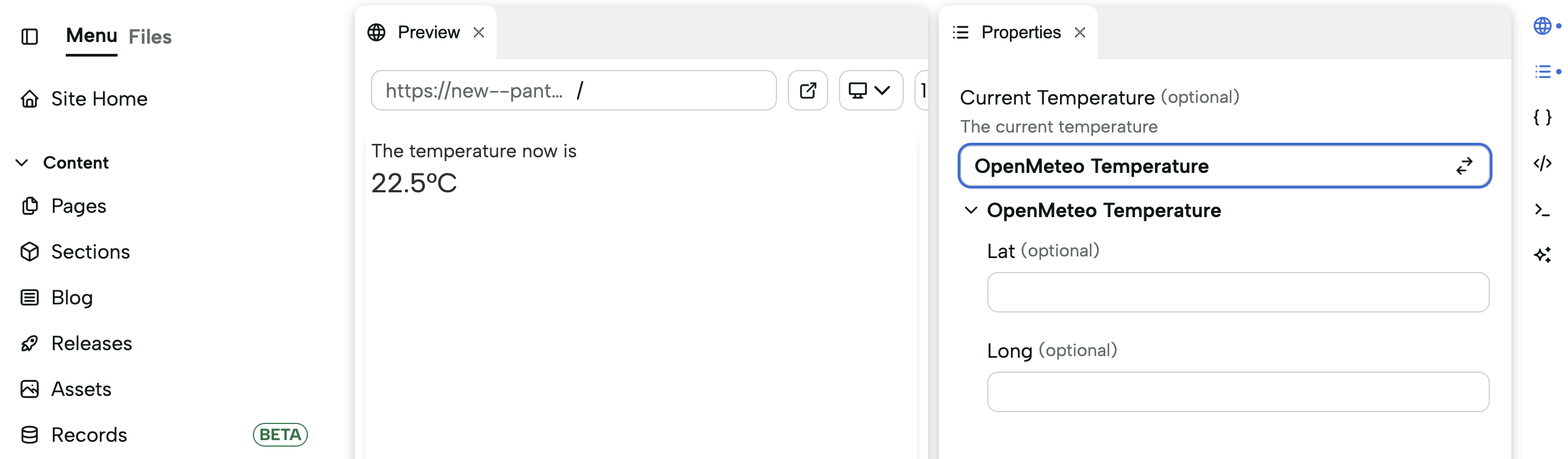
If you do not provide latitude and longitude, the loader will fetch the temperature of your current location. Alternatively, providing the latitude and longitude of a specific place will return the current temperature for that location:
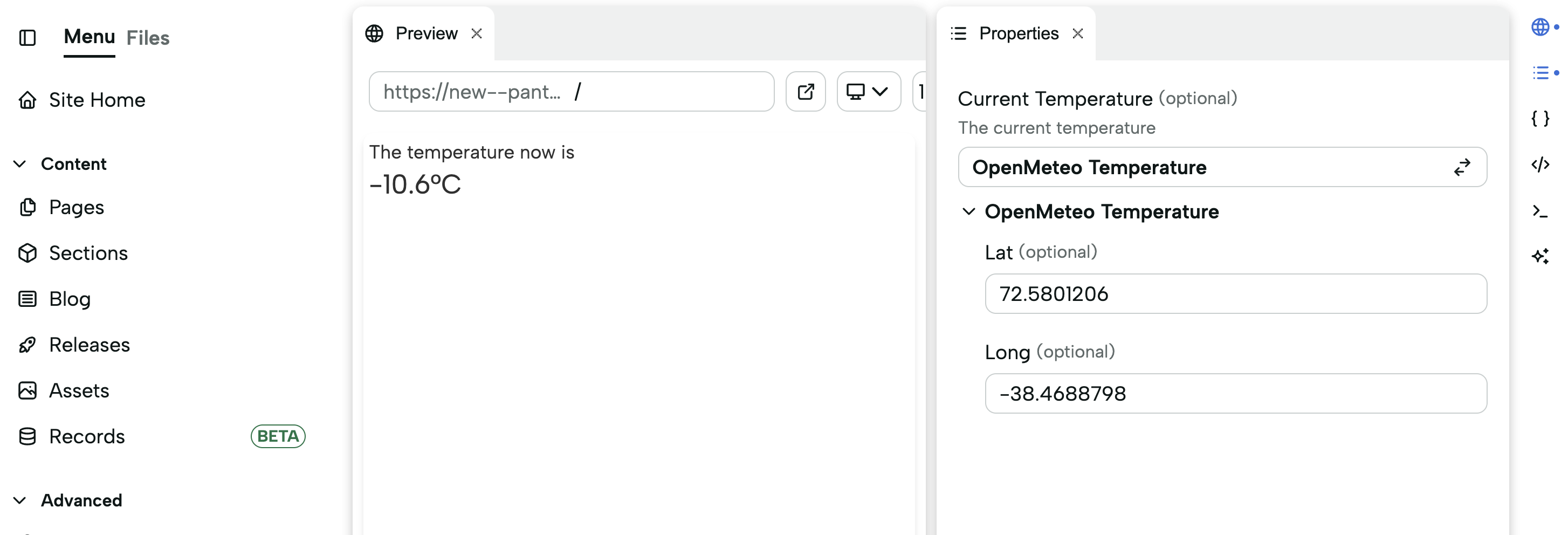
Looks like it’s a bit cold in Greenland.
4. Use the Section in Your Pages
Now you can use the configured section in your site pages just like you did in a previous tutorial. That's it! Enjoy exploring this and other apps on deco.cx!