

Legacy admin: Setting up GTM
Learn how to set up GTM in Deco
Retired legacy admin archive. Fresh and the former deco.cx admin are retired. Use released Blocks 7.x for the website runtime and Studio Site Editor for current content work. This is the original deco.cx admin documentation. Screenshots, product offers, and controls below are historical. Use the Studio Site Editor guides for current work and migration notes for the cutover.
Adding Google Tag Manager (GTM) is a common practice for many websites. The deco.cx platform offers a section that facilitates automatic integration of GTM into your site. However, it is important to note that using a GTM with many scripts can negatively affect the browsing experience and site performance.
Adding a Global Section for Site Loading
A recommended approach is to add the section that loads the GTM script across all pages of your site. This can be achieved using global sections, which are automatically loaded on all admin-generated pages. For proxied pages, it is still necessary to insert the script directly at its source.
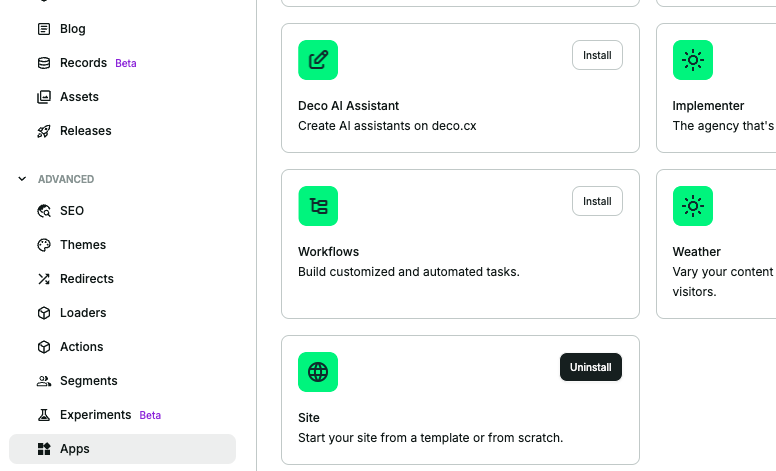
Start by selecting the site app:
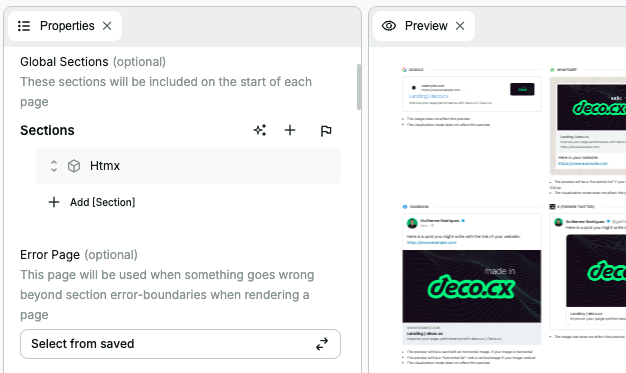
Next, locate the global sections properties:
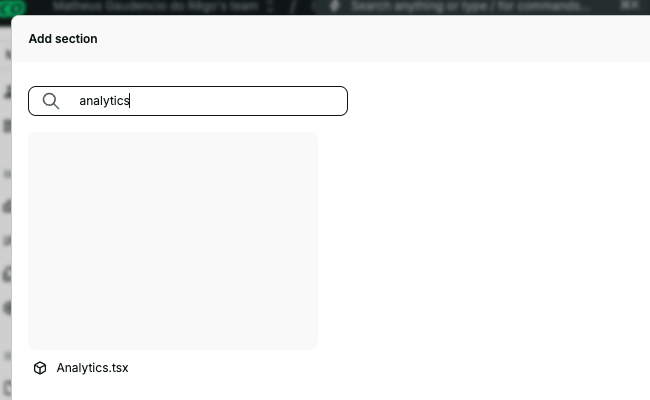
Finally, add the Analytics section:
Configuring Your Section
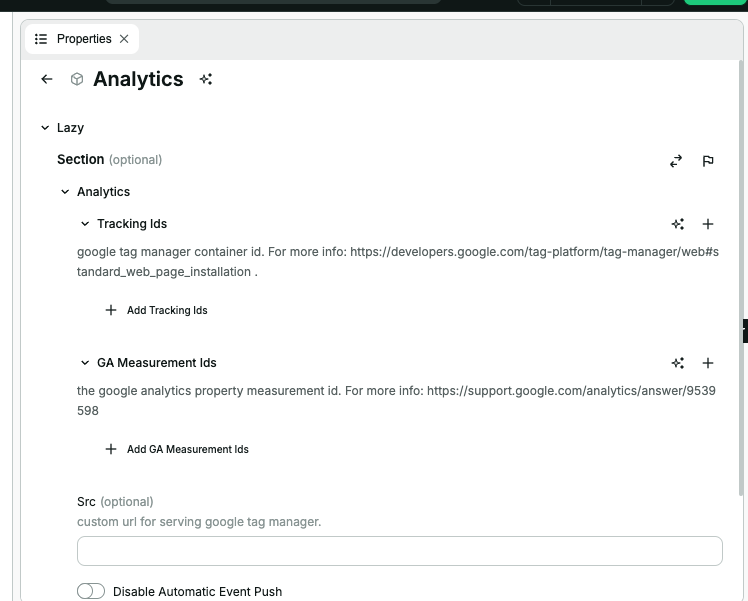
The default Analytics section supports various configuration options. If you have your GTM container ID, simply add it to the "Tracking ID" field to enable its use on the site. If you're using a Measurement ID, this can also be configured.
Additionally, it is possible to set up custom sources for the site.
Configuring GTM per Page
You can also add the Analytics section to individual pages. With this setup, each page can have its own GTM, allowing the use of different GTMs for different pages of your site.