

Legacy admin: Sections
Working with sections
Retired legacy admin archive. Fresh and the former deco.cx admin are retired. Use released Blocks 7.x for the website runtime and Studio Site Editor for current content work. This page preserves the former deco.cx admin workflow and screenshots. For the Studio Site Editor, use the current editor guides. Migration notes explain the change.
Sections represent components that can be used to build a page. A section is a Preact component, which means it transforms the properties passed to it into HTML.
When you open the sections (sidebar Content > Sections), you will have access
to a set of saved sections, the component library, and the ability to create and
save sections.
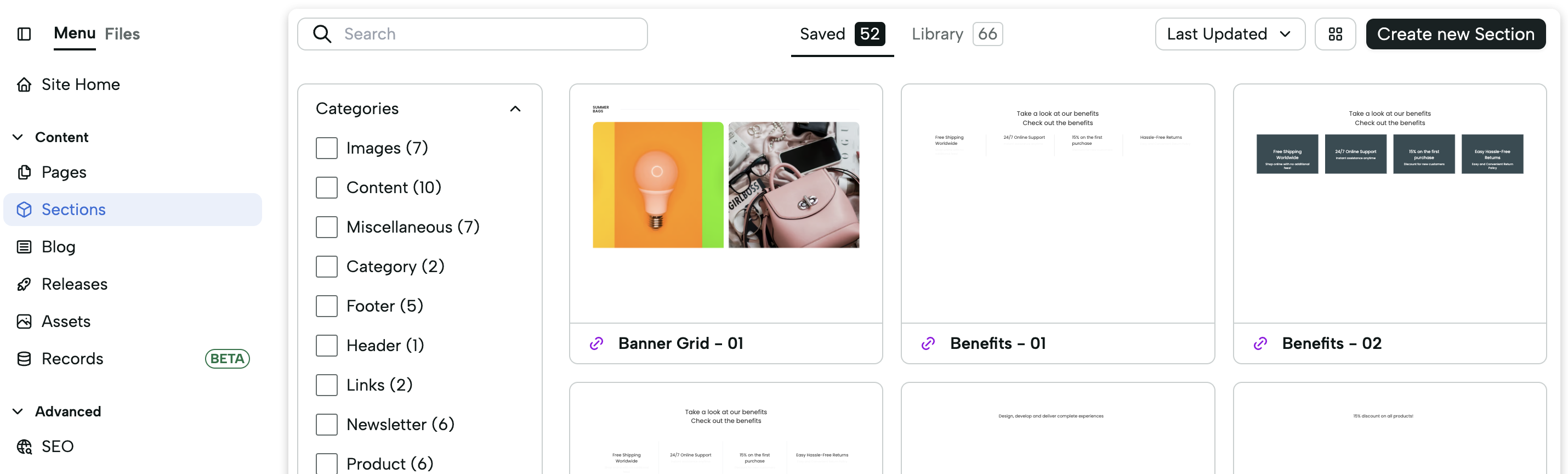
The different categories in the listing are obtained from the directory where the section is located or from the originating App (an App can import different sections).
From this screen, you can:

- Saved: List saved sections
- Library: List and test all available sections for use
- Create new Section: Create new sections
Modifying saved sections
A saved section represents a component that can be shared across multiple pages. Elements like Footer and Header can be shared between different pages, allowing their properties to be configured only once.
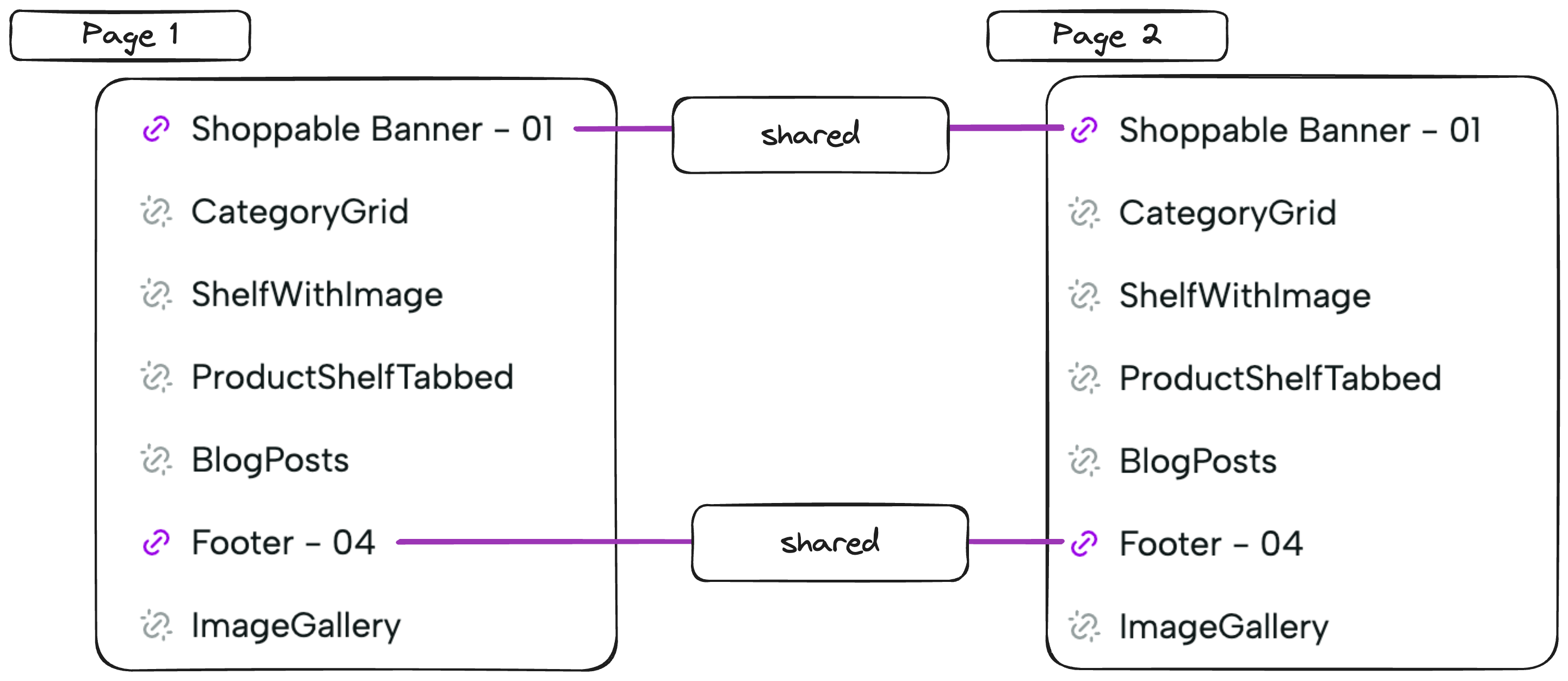
Saved sections can be configured from this screen, affecting all sections in the system. By clicking on a saved section, you can modify its previously configured properties.
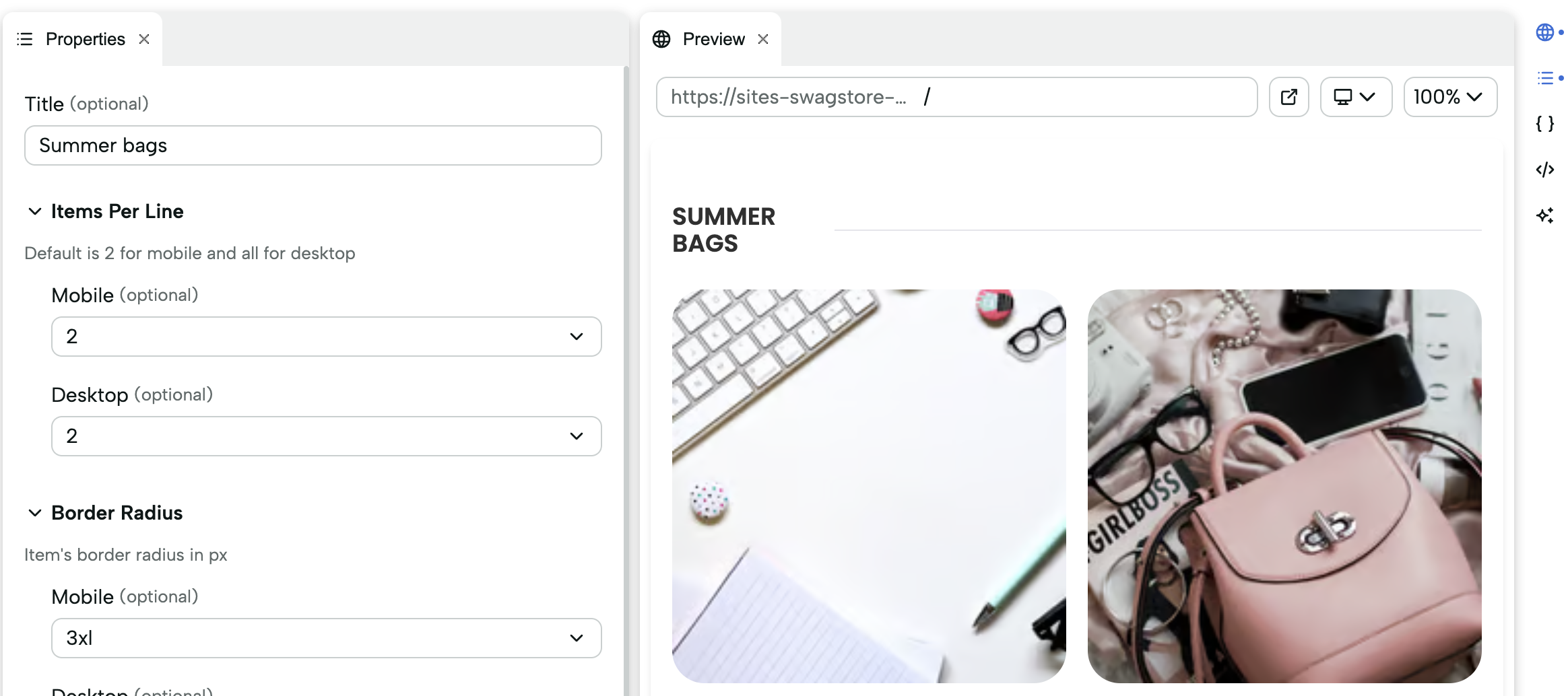
Configuring a section
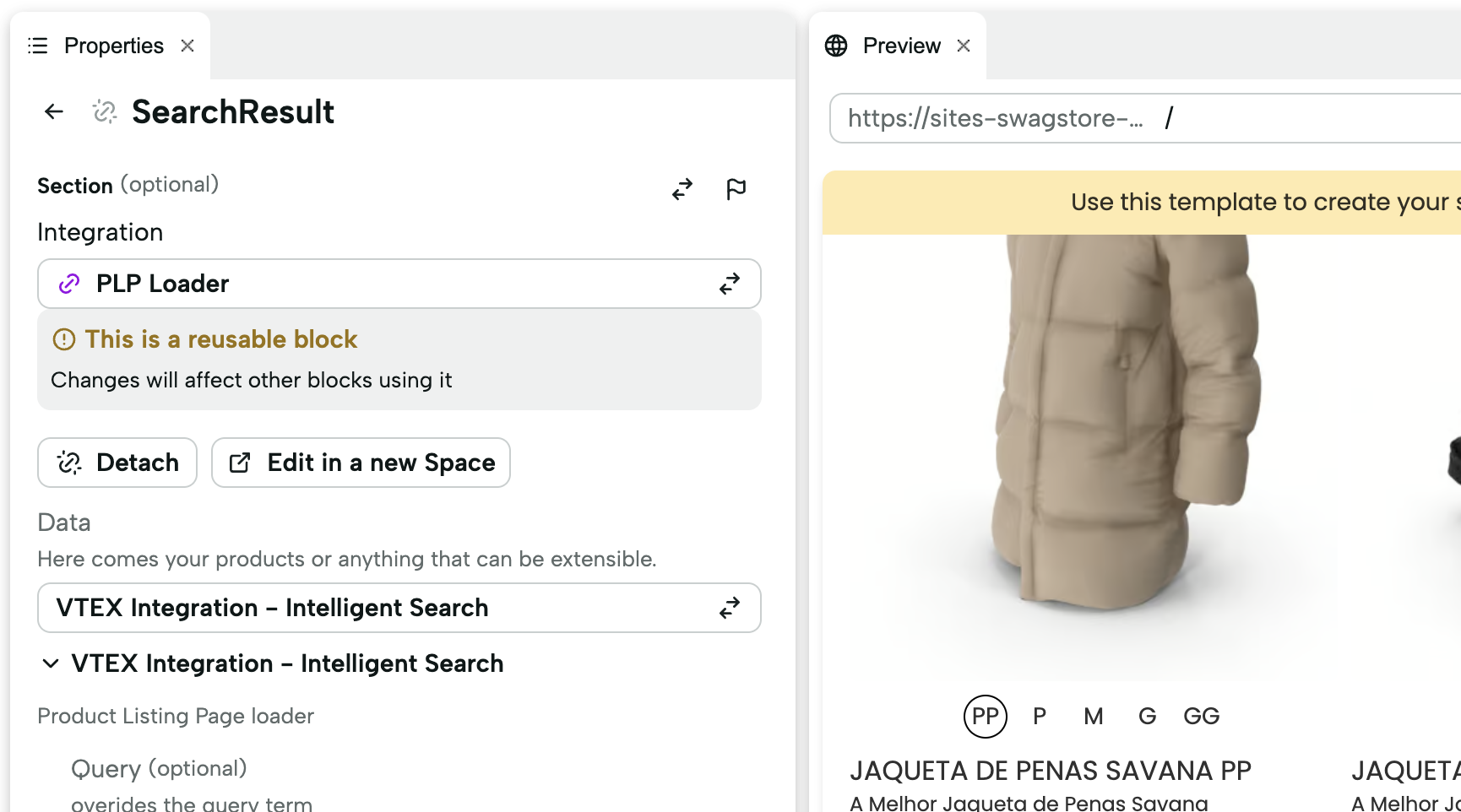
When selecting a section, you can define its properties. Some properties may require selecting an image, text, item selection, or even a loader. A loader is an entity that loads data and can receive configurations (by selecting a loader from the library) or already be configured (saved loaders).
Listing and testing other sections
When listing sections in the library and clicking on a section, you gain access to a preview of the section, as well as access to the original code of that element. It is also possible to edit the code to test changes in the functionality of the component.
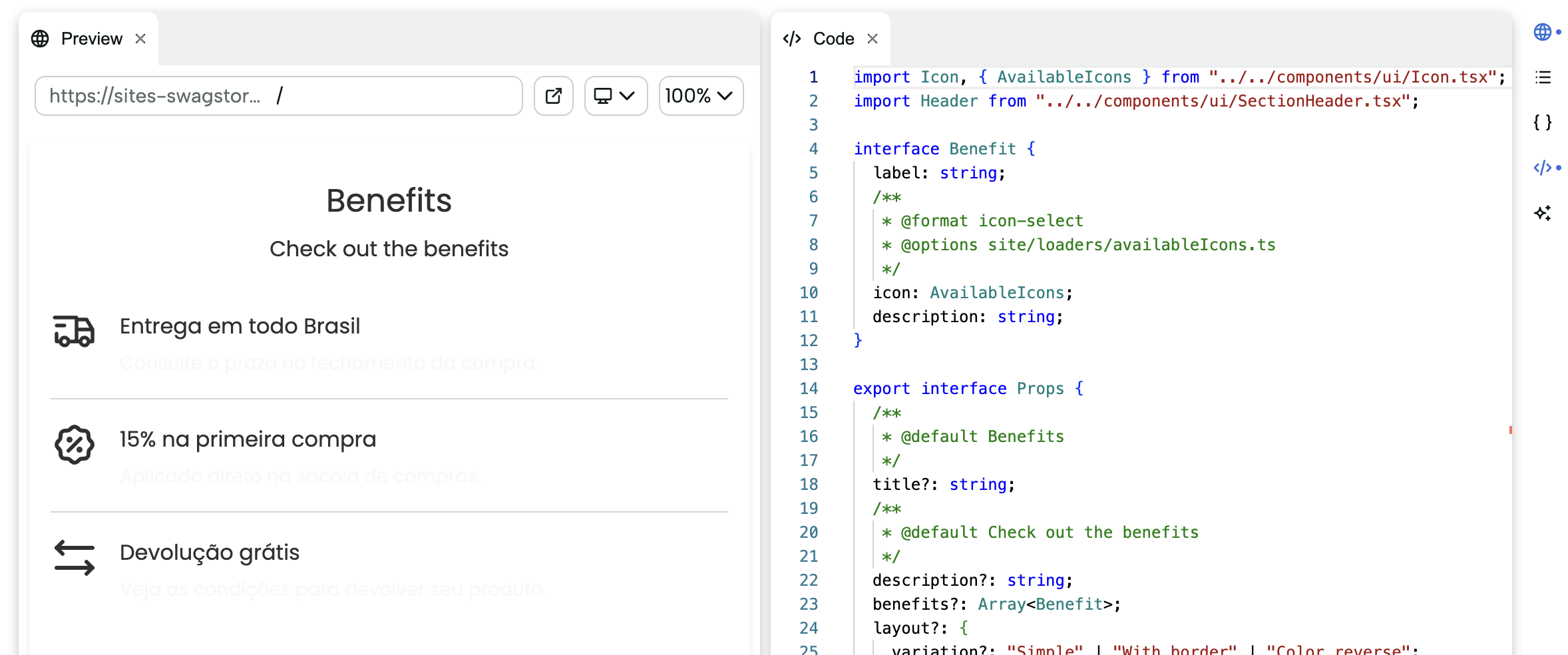
In the right sidebar, you can access:
🌐Element preview☰Form with properties{}Textual description of properties</>Code editor🖥️Logs related to section preview✨Decopilot: AI for code modification
Creating a new Section
You can create a saved section (a shareable component across multiple pages) or the base (template) of a section.
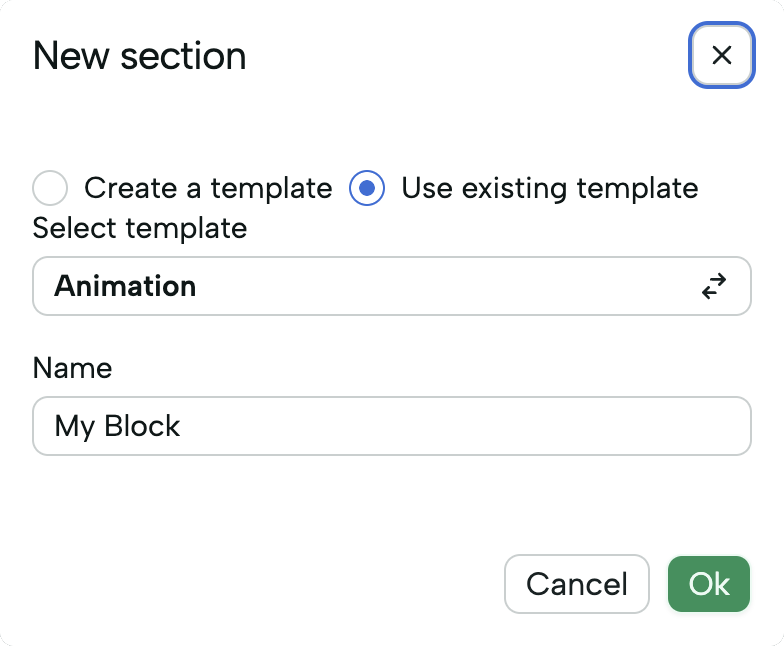
- New template: Creates a section that will be available in the component library. This means creating a code base that defines a set of properties and a program to generate the associated HTML.
- Using a template: Creates a saved section based on an existing base. The name will be the identifier of this element among different pages.